Your partner’s meeting ends at nine, and yours starts at nine-oh-five. The chair is too low, the monitor faces the wrong way, and the cable you need has disappeared behind the desk. Sharing one workstation at different times can work without making every changeover a small setup project. The aim is not an identical setup for both people: it’s a reliable way to move between two comfortable arrangements.
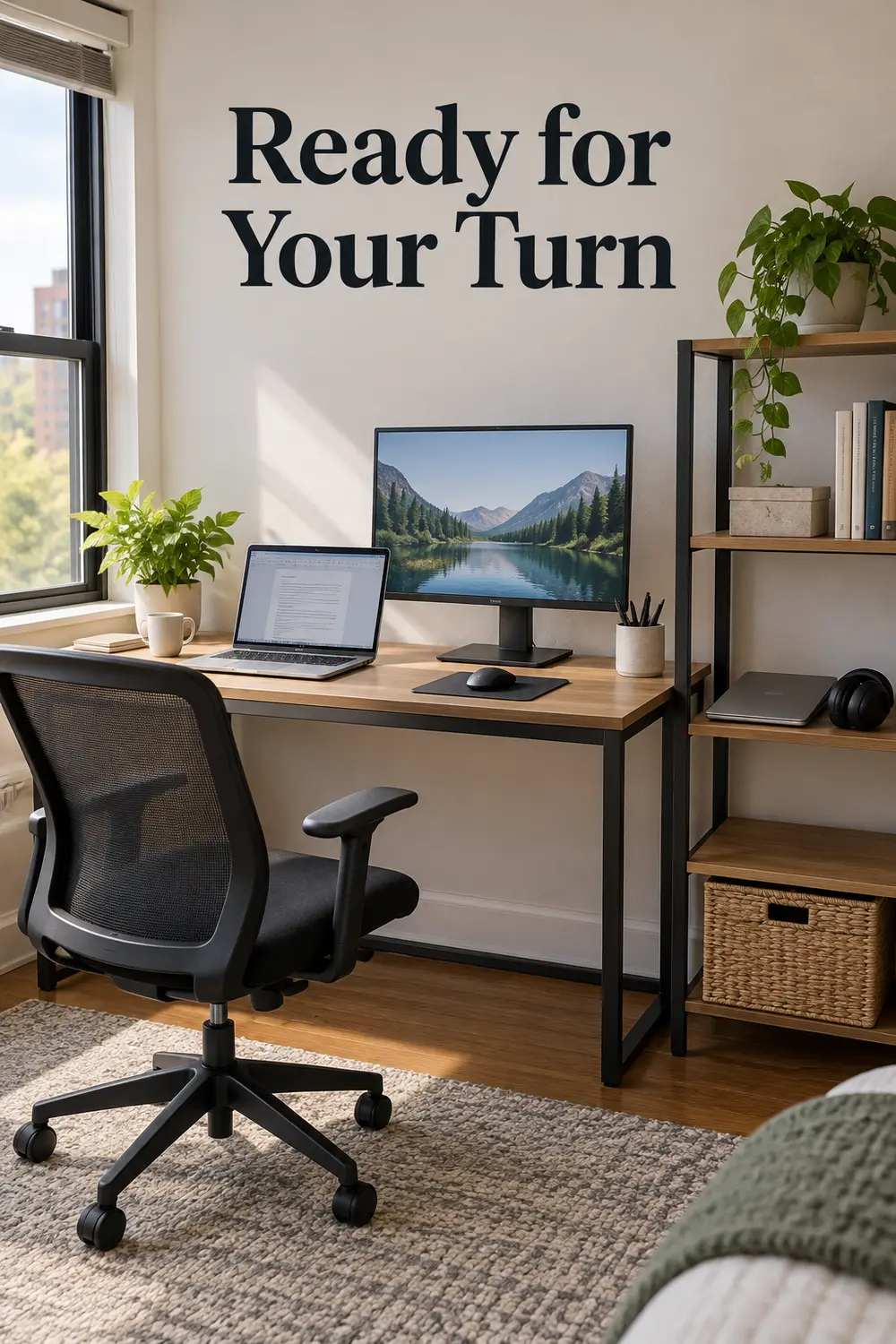
1. Record chair settings instead of rediscovering them
Start with the adjustments your existing chair actually offers. Each person should sit at the desk, try the keyboard and mouse, and find a comfortable combination of seat height, back support, and armrest position. Record those settings on a small card kept in the desk drawer. A note such as “seat level with lower drawer handle” can be more useful than an unexplained lever position.
Use removable marks on stationary surfaces only where they won’t interfere with moving parts. For adjustments without a readable scale, a quick phone photo may help. One person might also need a movable footrest that the other parks beside the desk. If the chair cannot accommodate both users comfortably, documenting its settings won’t fix that limitation; try another chair before adding more setup rituals.
2. Give each person a repeatable monitor position
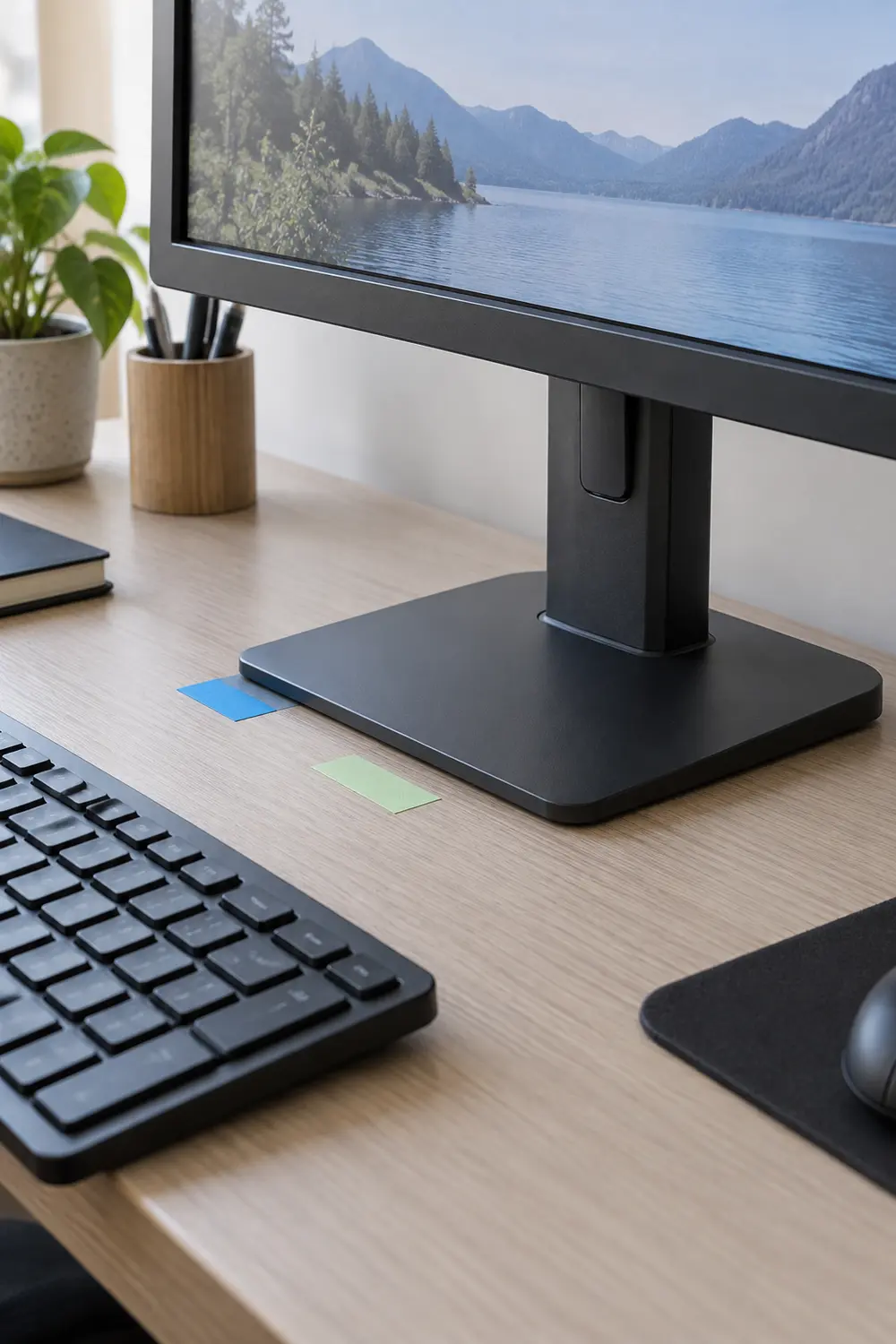
Find each person’s monitor position while they are seated in their own chair setup, not while standing over the desk. Adjust height, distance, and angle until the screen is comfortable to read without leaning forward. Small, removable tape tabs beside a sliding monitor base can identify two positions. On a stand with a height scale, record the setting instead of adding tape to its mechanism.
Different eyesight, screen tasks, and sitting positions mean there is no single distance or height to prescribe here. Check that cables have enough slack for both arrangements without pulling on ports. If a deep monitor base leaves too little room for your hands, these ways to reclaim desk depth and comfort address the surface itself. Don’t install a monitor arm without checking its mounting requirements and your desk’s suitability.
3. Separate input devices when preferences genuinely differ
A shared monitor doesn’t require a shared mouse and keyboard. A left-handed user, someone who relies on a number pad, or a person who prefers a trackball may benefit from their own devices. Keep each set together, including its receiver or charging cable. Two inexpensive labels on the undersides can prevent the daily question of which nearly identical mouse belongs to whom.
Before duplicating everything, test whether one shared keyboard works well for both people. Extra devices need storage and charging, and wireless models can reconnect to the wrong computer. Check device-switching instructions and practice the changeover. If you keep personal sets, make swapping them one deliberate step rather than leaving two keyboards on the desk and asking the incoming user to work around yesterday’s arrangement.
4. Standardize docking around both computers
Aim for one predictable connection routine, but verify compatibility before buying a dock. Check both computers’ specifications and the dock manufacturer’s documentation for display support, charging requirements, operating-system support, and required cables or software. Matching connector shapes do not guarantee matching capabilities. A compatible shared dock can turn several loose connections into one repeatable handoff, with the monitor and input devices staying connected at the desk.
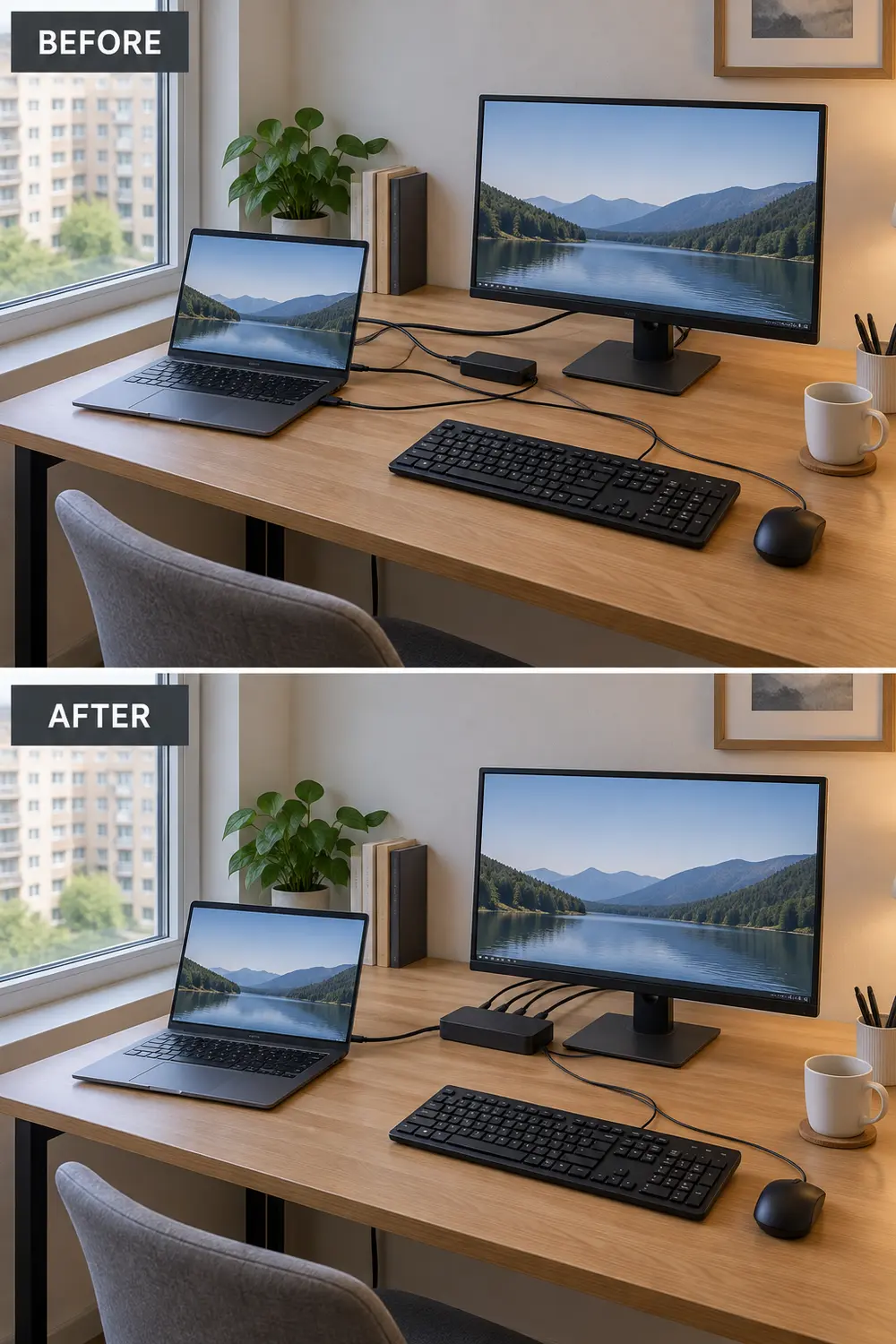
If one computer needs a separate charger or adapter, give it a permanent, clearly identified place rather than pretending the system is universal. Test the full routine on both machines: display, keyboard, mouse, audio, and charging. Follow workplace IT rules for employer-owned equipment. A slightly less elegant setup that connects reliably is better than a one-cable promise that fails just before a call.
5. Label connections where hands actually reach
Put small cable flags near the ends you unplug, not only behind the monitor. Use functional names such as “dock to laptop,” “monitor,” and “Sam’s charger.” If two similar cables serve different purposes, matching colored tags on the cable and its destination can help. Keep labels clear of connector surfaces, vents, and any area that gets warm during normal use.
Secure the desk-side cable ends with removable clips so they don’t fall behind the furniture between users. Leave enough slack for both laptop positions and test the adhesive on an inconspicuous spot first. Labels cannot make an incompatible cable suitable, so confirm its function before naming it. Avoid bundling everything so tightly that replacing one charger requires dismantling the whole arrangement.
6. Keep digital workspaces separate, too
When both people use one computer, create separate operating-system user accounts so files, browser sessions, and preferences have distinct homes. Each person should use their own credentials and follow any employer restrictions. Set up the handoff around switching users or signing out as appropriate, rather than leaving an email inbox open and expecting the next person to avoid it.
Separate accounts are a practical boundary, not a promise of complete privacy or permission to share a work computer. Check account privileges, shared folders, and workplace policies. If each person brings a laptop, keep browser profiles and work credentials on that device instead. Agree what happens to unfinished tasks before the switch; closing someone else’s application can discard work even when the physical desk looks ready.
7. Give each person a lift-away work tray
Choose two shallow trays that hold the things each person actually handles during a work session: notebook, pen, glasses case, and a few current papers. The tray moves onto the desk at the start and returns to a shelf at the end. Measure the storage shelf and desk before choosing containers; a tray that overhangs either surface simply creates another obstacle.
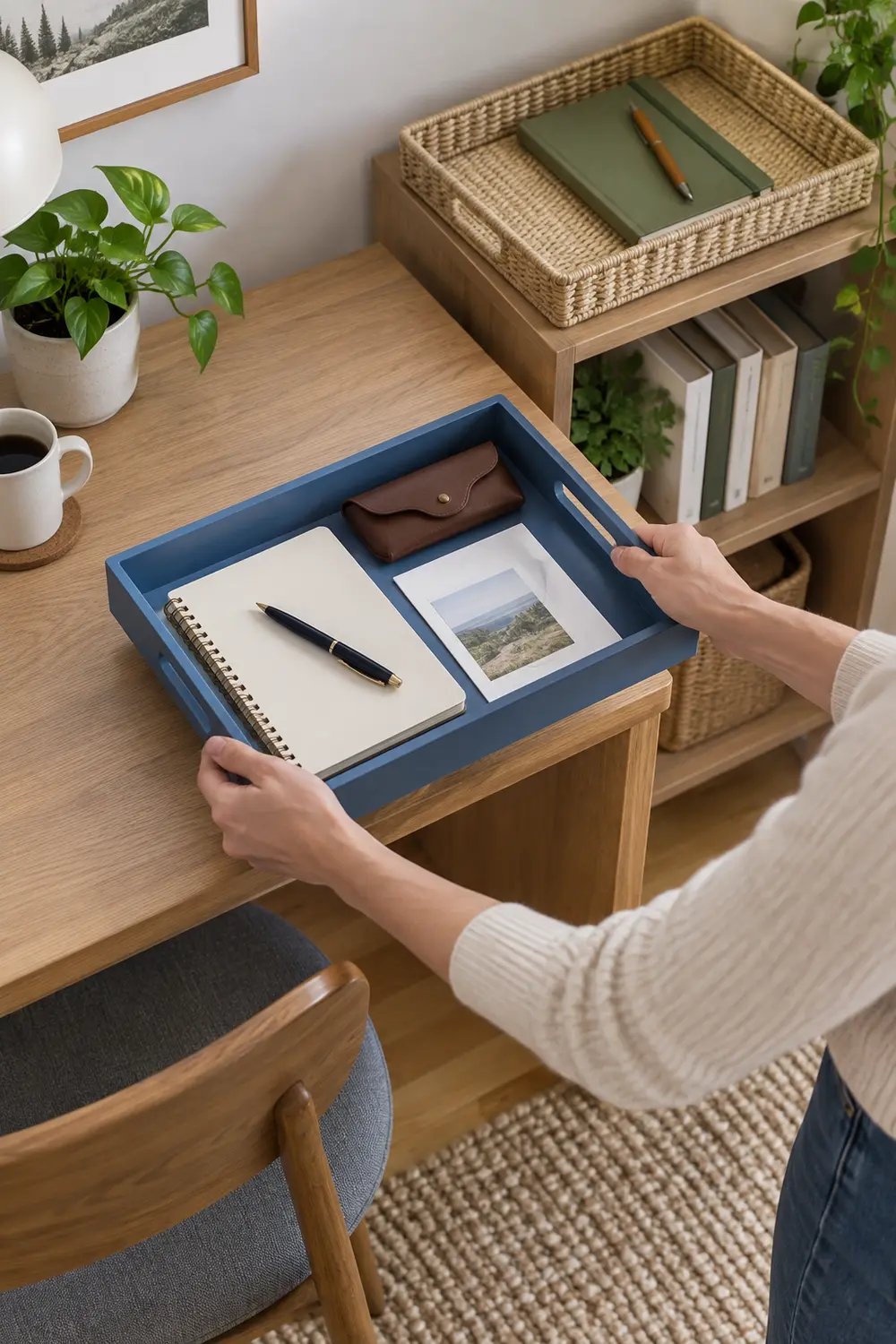
Keep active work here, not the entire paper archive. A tray piled with months of mail becomes heavy and hides the item needed next. Give it a brief weekly sort, and store confidential papers appropriately rather than in an open shared-room tray. If work materials already spread into household piles, these daily drop-zone fixes can help separate office overflow from keys, mail, and other arrivals.
8. Create a safe parking spot for inactive equipment
Decide where the outgoing laptop, headset, and personal keyboard will wait before clearing the desk. An existing shelf or drawer may be enough; there is no need to add a rolling cart if it blocks the chair. Store a powered-down laptop flat on a supported shelf, or use a holder intended for its size and orientation. Keep equipment away from spills and floor traffic.
Parking is different from operating: equipment that remains running or charging needs the ventilation and clearances specified by its manufacturer. Don’t tuck a running laptop into a padded sleeve or crowded drawer. Measure cabinet doors, nearby door swings, and the route past the desk before adding storage. In a living room, these ways to keep a desk from taking over can help the parking area fit ordinary evening use.
9. Reserve the desk, not just the meeting
Use a shared calendar to reserve workstation time, including setup and wrap-up. A call from ten to eleven may require the desk a little earlier for connecting equipment and checking audio. Mark sessions that truly need the shared monitor or a particular background, rather than claiming the desk for every task that could happen elsewhere.
Agree on a modest handoff buffer and a rule for overruns. Perhaps the person finishing sends a message as soon as a meeting runs late, rather than leaving the next user waiting in the doorway. Scheduling cannot resolve two simultaneous, nonnegotiable calls. Identify a fallback location in advance, even if it offers fewer comforts, and acknowledge when the household’s work patterns exceed what one workstation can support.
10. Close with a short, visible handoff checklist
Write a closing checklist that takes only a glance: save work, sign out or lock as appropriate, disconnect personal equipment, move the work tray, and leave the shared connections reachable. Include removing cups and food if those regularly linger. Keep the card near the desk rather than buried in an app; the outgoing person should be able to follow it while gathering their belongings.
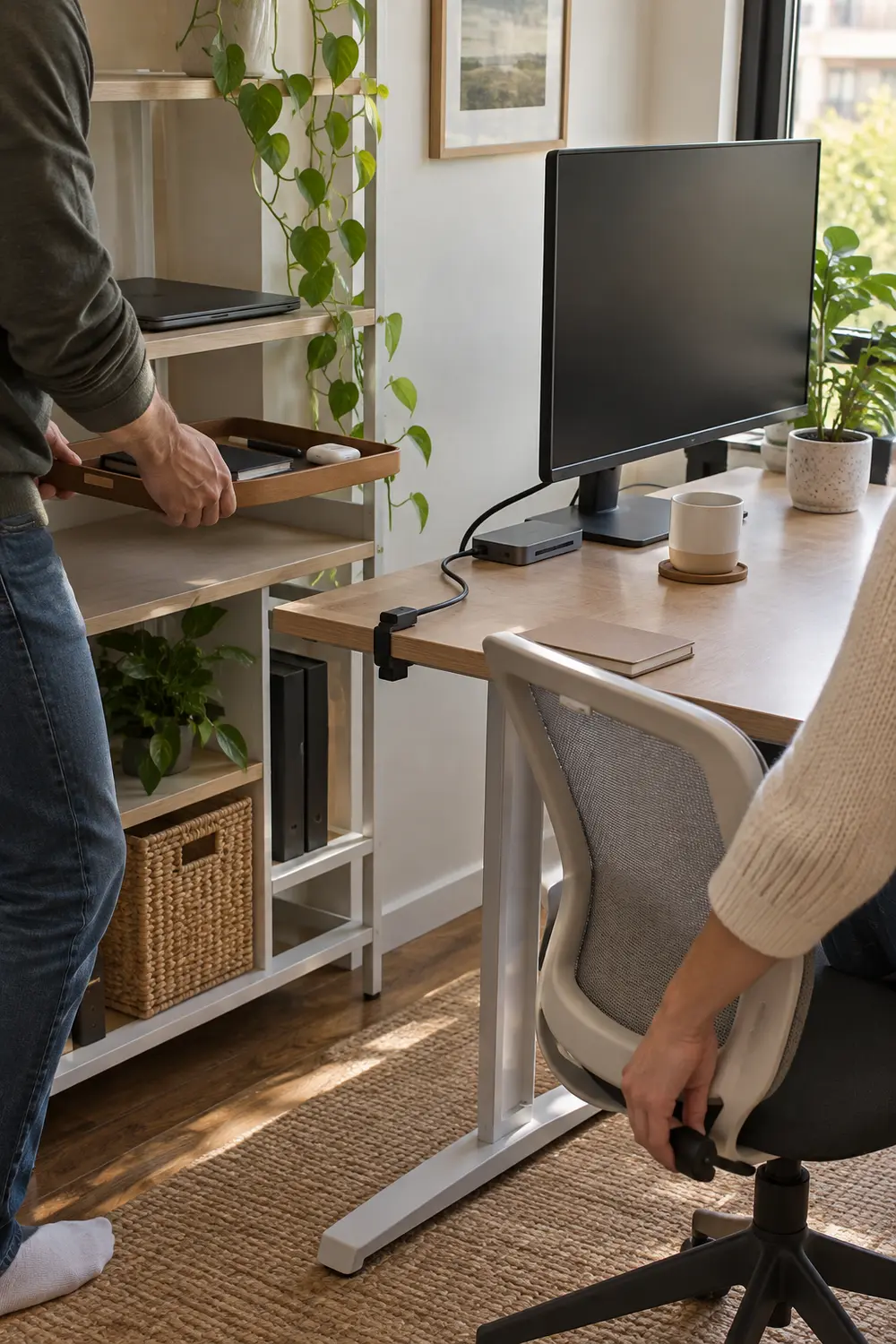
Leave personal chair and monitor adjustments to the incoming user unless you have agreed otherwise; guessing their settings can add work. Try the checklist for several changeovers, then remove unnecessary steps and add any repeatedly forgotten one. If the same cable is always missing or the tray has nowhere to land, fix that physical problem rather than lengthening the list. The routine should support the setup, not compensate for it.
At the next changeover, notice the first thing that slows the incoming person down. Record that chair setting, identify that cable, or clear that parking shelf before buying anything. Solve the repeated interruption first, then build the rest of the handoff around what both people actually need.
Leave a Reply