A small desk can feel crowded even when it holds only the essentials. A monitor base consumes the back edge, paperwork pushes the keyboard forward, and loose cables make every adjustment harder. Before replacing the desk, look at how its depth actually gets used. These ten changes address different space problems, so choose the ones that match your equipment and household. Any dimensions mentioned are approximate planning guidelines, not compliance standards; measure your desk, equipment, chair, and surrounding room before buying or moving anything.
1. Replace the Monitor Base With a Compatible Arm
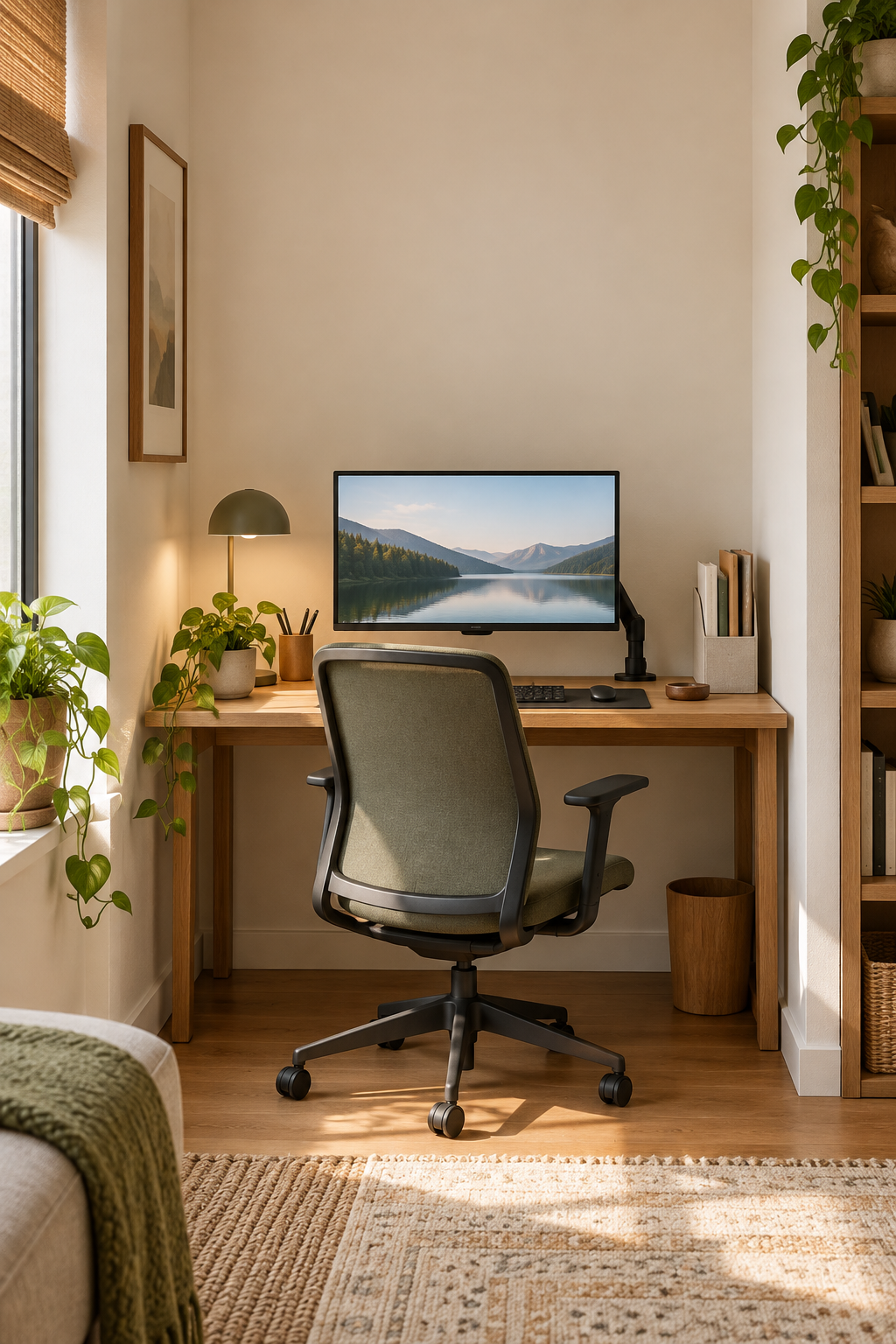
A monitor arm can recover the strip of desk occupied by a broad pedestal. Check the screen’s mounting pattern and weight, then verify that your desktop can accept the specified clamp or grommet mount. On a shallow desk, position the screen near the rear edge while keeping enough adjustment range to bring it closer when small text becomes difficult to read.
Do not assume every desktop can withstand a concentrated clamp load. Glass, hollow-core panels, thin edges, and decorative lips may be unsuitable unless the manufacturers explicitly approve the installation. Arms also need space to swing without striking a wall. If the desk or monitor is incompatible, keep the original stand rather than improvising reinforcement or using an unstable mount.
2. Reserve a Clear Keyboard-and-Mouse Landing Zone
Arrange the keyboard and mouse as one working zone instead of fitting them around scattered objects. Center the letter keys on your seated position, place the mouse close beside them, and leave enough surface in front for relaxed hand placement. For example, move a notebook from directly ahead of the keyboard to the unused rear corner without changing the equipment.
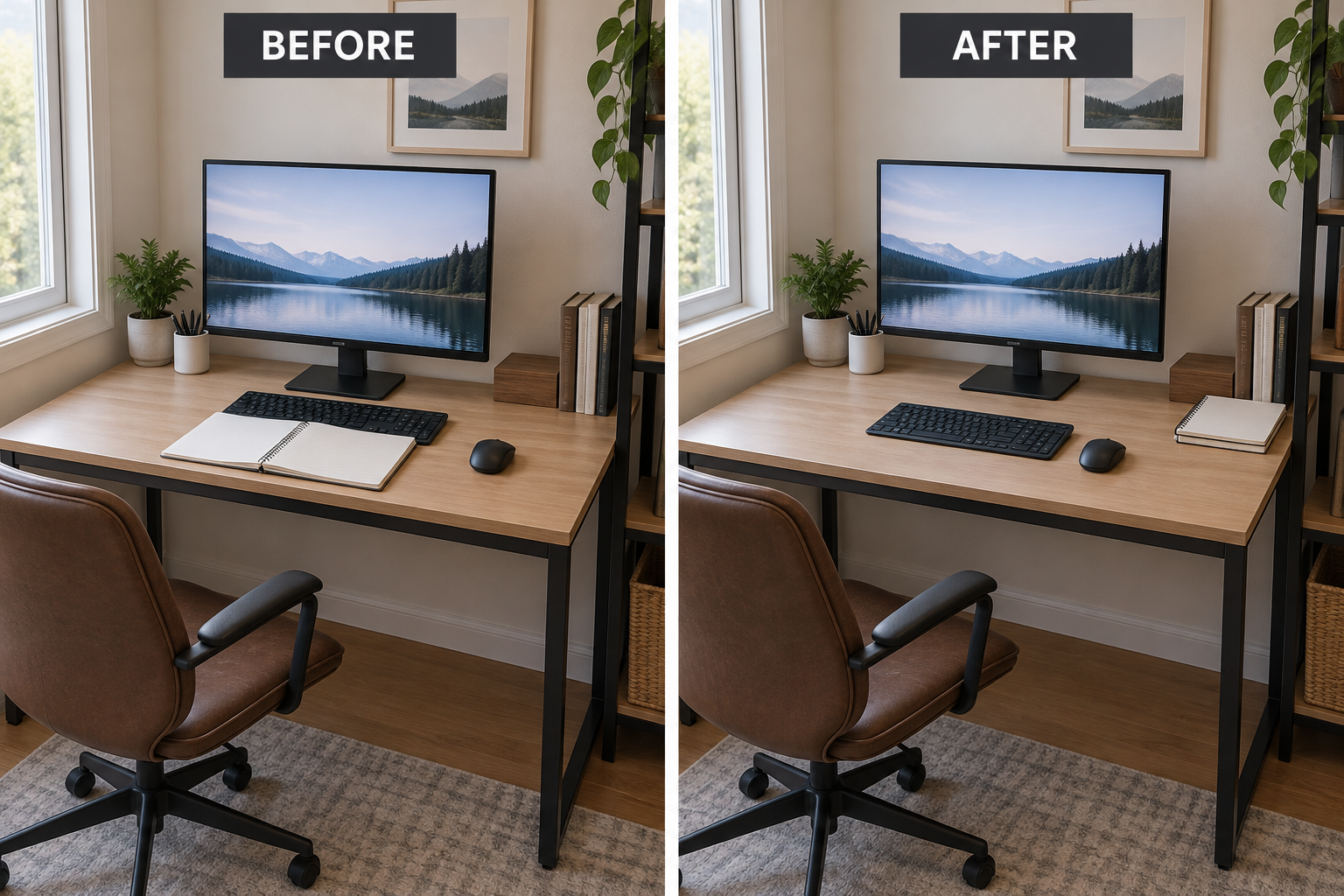
The common mistake is interpreting clear space as a reason to push everything as far back as possible. That can leave you reaching across the desk. Test the arrangement while seated, with shoulders relaxed and elbows comfortably near your sides. A desk too narrow for your keyboard and normal mouse movement may need different input equipment rather than tighter packing.
3. Give the Laptop One Clear Role
When a laptop accompanies an external monitor, decide whether you truly need both screens. If not, a compatible vertical dock can remove the laptop’s open footprint while an external keyboard and mouse handle input. If you need its screen, use a stable stand that raises it beside the monitor and leaves useful surface below, rather than placing it ahead of everything.
Check the laptop manufacturer’s guidance for closed-display operation, power requirements, and ventilation before choosing a dock. Never block vents or tuck a running computer into a tight padded sleeve. A raised open laptop is also unsuitable for extended typing on its built-in keyboard; without separate input devices, the stand may trade recovered depth for an awkward working position.
4. Stand Reference Pages Beside the Screen
A freestanding document holder turns a flat reference sheet into a narrow upright surface. Place it beside the monitor, where you can read it without leaning over the keyboard. For example, a recipe developer reviewing printed edits could keep one active page upright while leaving the center of the desk available for typing and a small pad.
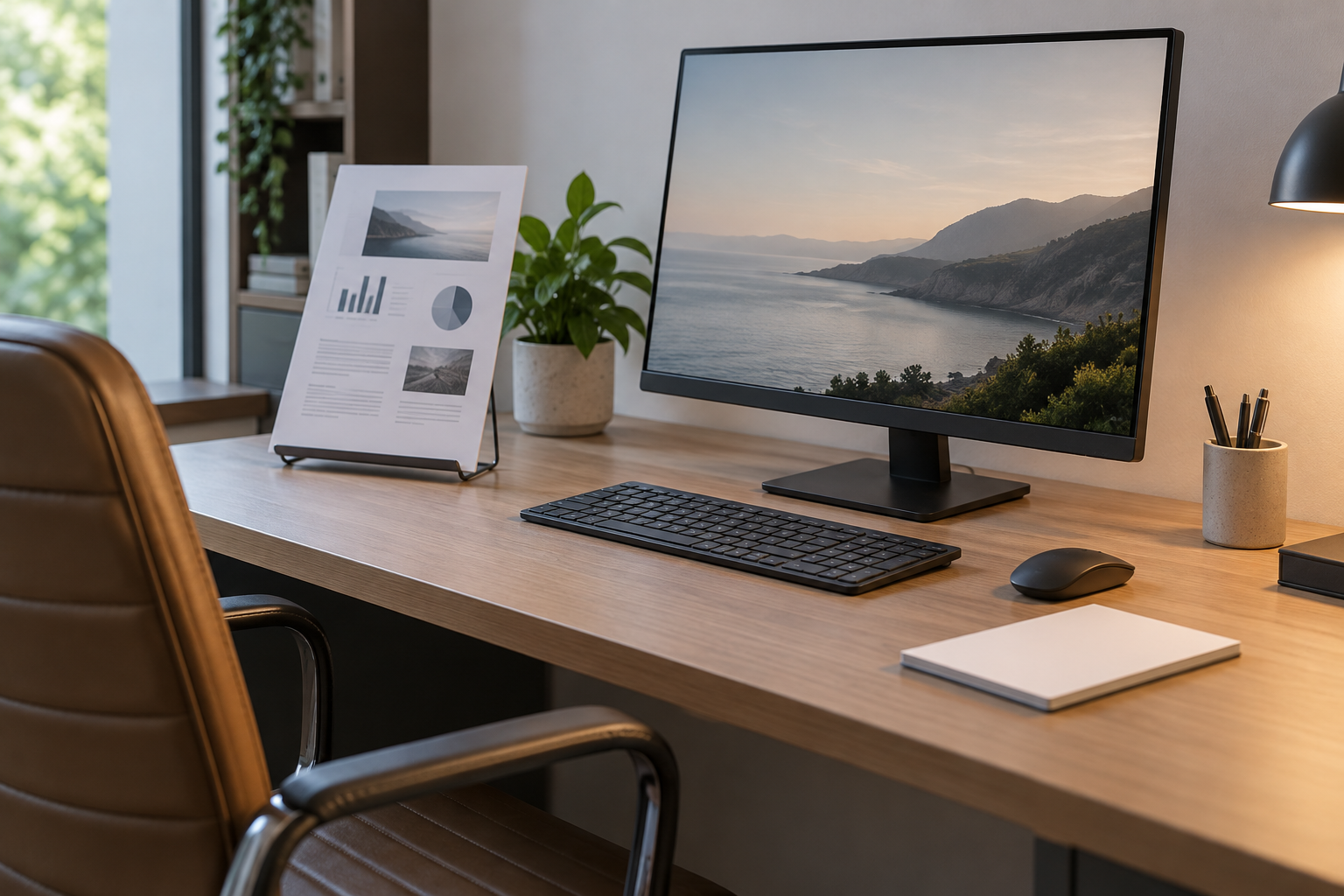
Avoid treating the holder as a permanent stack rack. Thick piles can hide pages, destabilize a lightweight stand, and recreate clutter vertically. Oversize drawings and documents that need frequent handwriting may work better flat. Adjust the holder’s angle to reduce glare, and keep it out of the mouse path and away from the screen’s essential viewing area.
5. Move Cable Bulk Off the Desktop
Route cables toward one rear corner and support the excess in an under-desk basket or manufacturer-approved cable tray. Give the monitor and other movable equipment enough slack for their full adjustment range. A loose loop secured with reusable ties is easier to revise than a tightly bundled knot, especially when a laptop connects and disconnects every day.
Do not squeeze power bricks into sealed containers or pinch cords beneath clamps. Follow equipment ventilation instructions, avoid overloaded outlets and daisy-chained power strips, and keep cables out of walking routes. Adhesive clips may release or damage finishes, so check rental rules and surface compatibility. A tray is unsuitable if it steals the knee clearance you need.
6. Relocate Supplies You Do Not Use Every Hour
Reserve the desktop for tools used during active work, and move backup supplies to nearby storage. A shallow wall organizer can hold pens, envelopes, and charging accessories that otherwise form a row behind the keyboard. In a rental where wall installation is not permitted, use an existing drawer or nearby cabinet rather than adding another desktop organizer.
More storage is not automatically better if reaching it interrupts every task. Keep frequently used tools accessible, and avoid deep shelves that crowd the monitor or place heavy objects overhead. Obtain rental permission where needed and use fasteners appropriate to the wall and load. If safe mounting is uncertain, choose existing furniture instead of relying on unsuitable adhesive hardware.
7. Move the Computer Tower to a Ventilated Side Support
A desktop computer tower can consume a surprising amount of usable depth when it sits beside the monitor. If you already have a sturdy adjacent cart or low shelf, check its load capacity and the computer’s required ventilation clearances. Moving the tower there can restore a continuous work surface while keeping the computer accessible for power controls and connections.
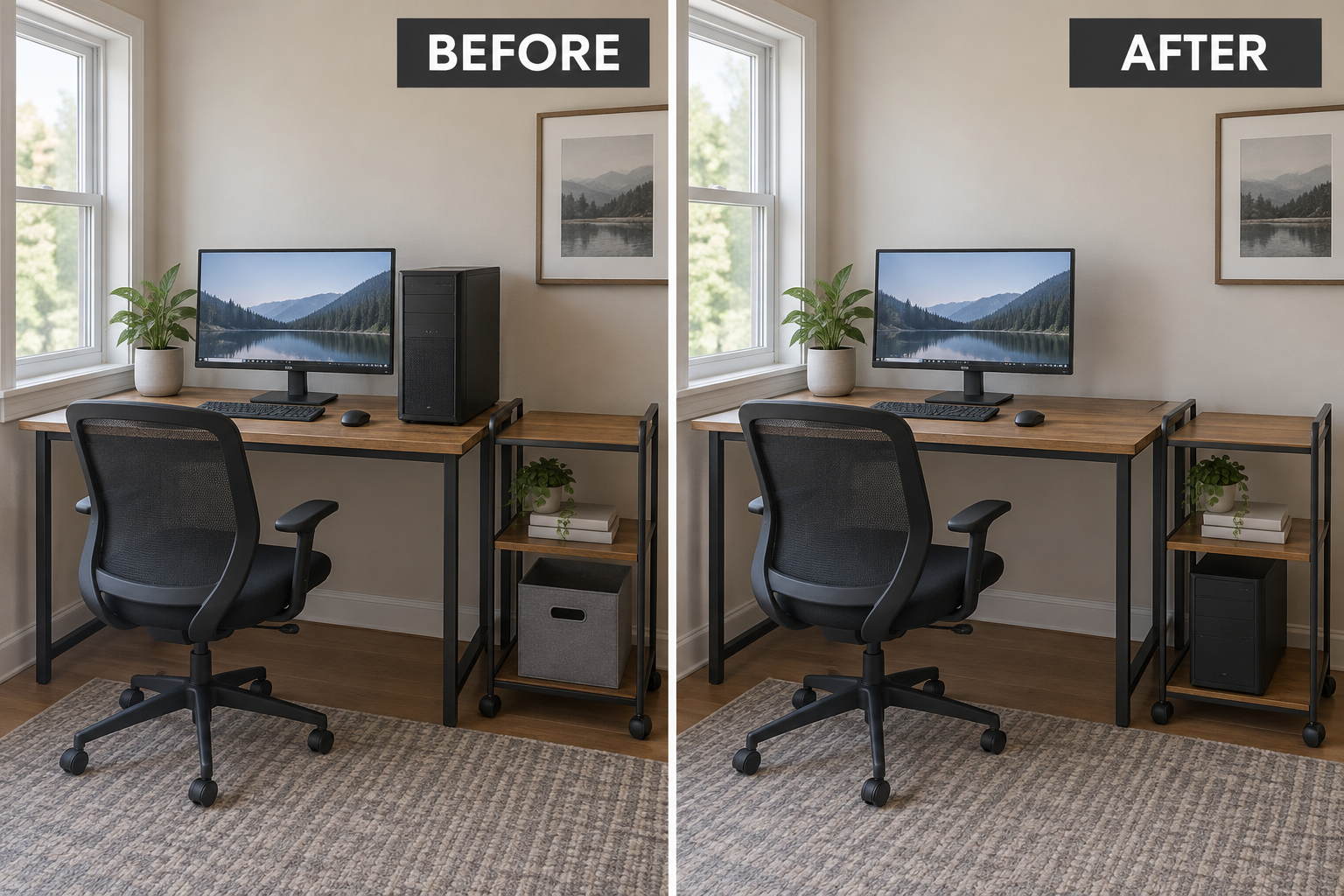
Do not solve desktop crowding by putting the tower where feet will kick it or where dust and fabric can block airflow. Avoid enclosed cabinetry unless it is suitable for that equipment. The new location must not obstruct doors, exits, or household circulation. If cables cannot reach safely, retain the original position until an appropriate arrangement is available.
8. Consider a Keyboard Tray Only After Testing Clearance
A properly fitted keyboard tray can separate typing space from the surface used for documents. Before installing one, mock up its height and depth with measurements, then check seated thigh clearance and full mouse travel. Choose a stable model wide enough for both devices; otherwise, the mouse may remain stranded on the desktop at a different height.
Trays are not universal fixes. Aprons, crossbars, thin tops, and sit-stand mechanisms can prevent secure attachment, while a low tray may interfere with your legs. Follow mounting instructions and confirm permission before drilling furniture you do not own. If the arrangement forces an uncomfortable reach or leaves too little clearance, a clear desktop input zone is the better option.
9. Replace a Bulky Lamp Base With Targeted Light
A large lamp base often occupies the exact corner needed for paperwork or mouse movement. A compatible clamp lamp or securely mounted wall light can return that surface to work. Position the light to illuminate documents without reflecting directly in the monitor; for handwritten work, try placing it opposite your writing hand to reduce the shadow across the page.
Check that the clamp fits the desktop and does not compete with a monitor arm or cable route. Keep cords away from moving joints, and follow fixture clearance instructions, especially near curtains and shelving. Wall lights require suitable mounting and rental approval when applicable. If neither option fits safely, keep a compact freestanding lamp rather than forcing an insecure attachment.
10. Create a Temporary Return for Paper-Heavy Tasks
Some tasks simply need more flat space than a shallow desk can provide. For occasional sorting or handwritten review, place a stable folding table beside the desk as a temporary return. Use it for the active spread while keeping the keyboard zone intact, then file the papers and fold the table away when the task is finished.
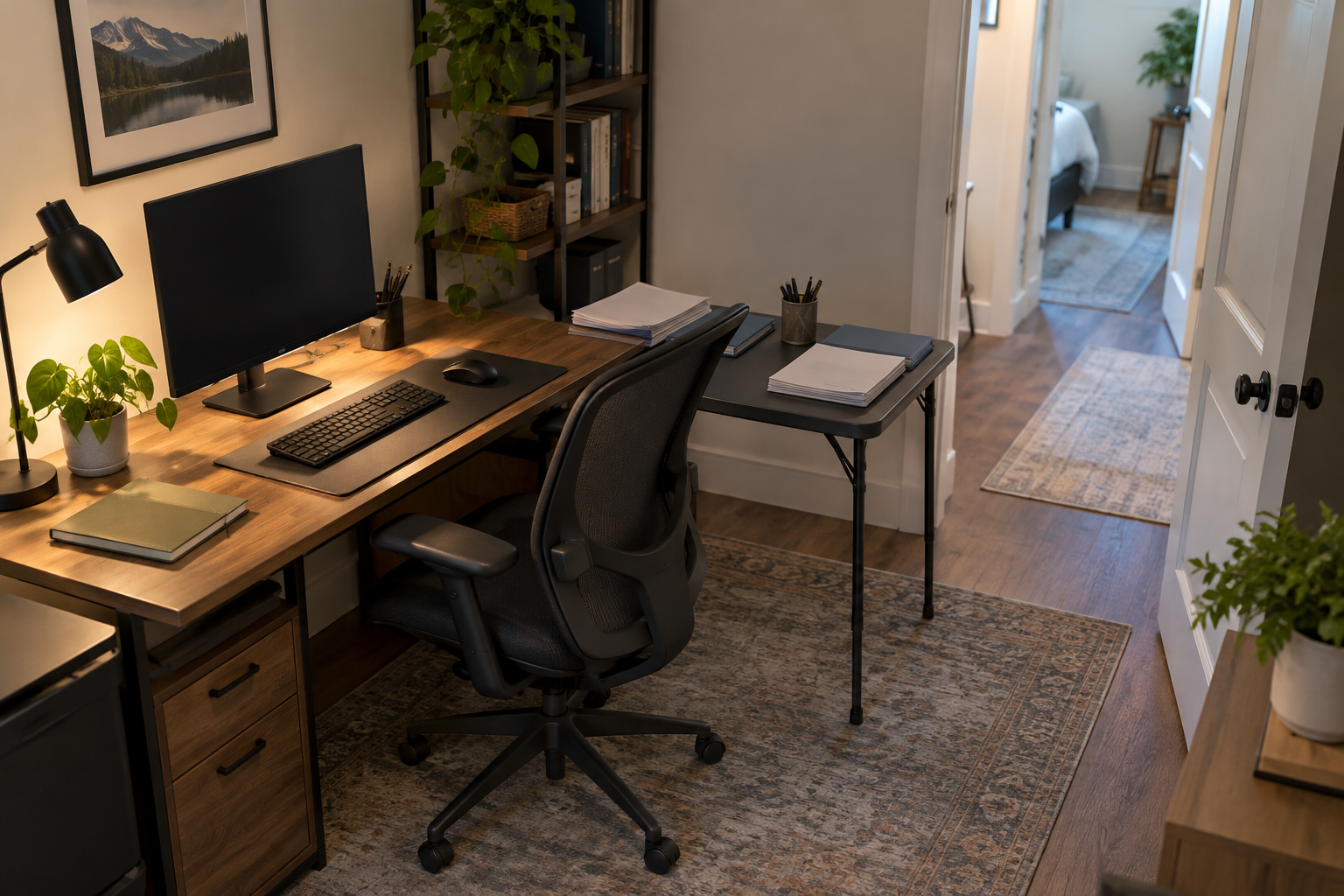
A temporary return is unsuitable if it narrows a necessary walking route, blocks an exit, or prevents someone else from using the room. Do not balance a board between furniture or lean heavily on a lightweight table. Check stability, floor level, and household needs first; in tighter rooms, schedule paper review on an existing dining table instead.
Start with the obstruction that affects your work most: a deep monitor base, crowded input area, or constant paper spread. Make one change, sit down, and test a normal task before adding another. The goal is not an empty-looking desk. It is enough usable depth, clear movement, and practical support for the way you actually work.
Leave a Reply